
FPSDoctor Review: AI-Guided PC Optimization for Gamers
FPSDoctor review: AI-powered guides to boost FPS, cut input lag, and optimize your gaming PC. Free tier available. See our honest verdict and testing results.


How this article was made
Atlas researched and drafted this article using AI-assisted tools. Todd Stearn reviewed, tested, and edited for accuracy. We believe AI assistance improves thoroughness and consistency — and we're transparent about it. Learn more about our methodology.
Try FPSDoctor today
Get started with FPSDoctor — free tier available on most plans.
FPSDoctor is an AI-guided PC optimization service that walks gamers through system tweaks to boost FPS and reduce input lag. It's a teaching tool, not an auto-optimizer. Free tier available; Pro costs ~$8/month (as of May 2026). Best for mid-range PC gamers wanting to squeeze more frames without buying new hardware.
Quick Assessment
| Rating | 6/10 |
| Price | Free tier; Pro ~$8/month (as of May 2026) |
| Best for | Casual and mid-range PC gamers wanting guided system optimization |
| Category | Consumer / Gaming Performance |
Pros:
- Step-by-step guides are beginner-friendly and reduce the risk of breaking your system
- Game-specific optimization profiles for competitive titles like CS2 and Fortnite
- Free tier covers core system tweaks without paywalling essentials
Cons:
- Not an autonomous agent - you do all the work manually following guides
- Limited value for experienced PC users who already know Windows optimization tricks
Try FPSDoctor →
If you're evaluating whether an AI-powered tool can genuinely improve your workflow, our guide to choosing the right AI agent is a solid starting point. FPSDoctor sits in an unusual spot: it's marketed as an AI agent but functions more like a smart advisory service. That distinction matters, and we'll break it down. For gamers also exploring AI-powered productivity tools for small business, the broader landscape offers much more autonomous options.
What Is FPSDoctor?
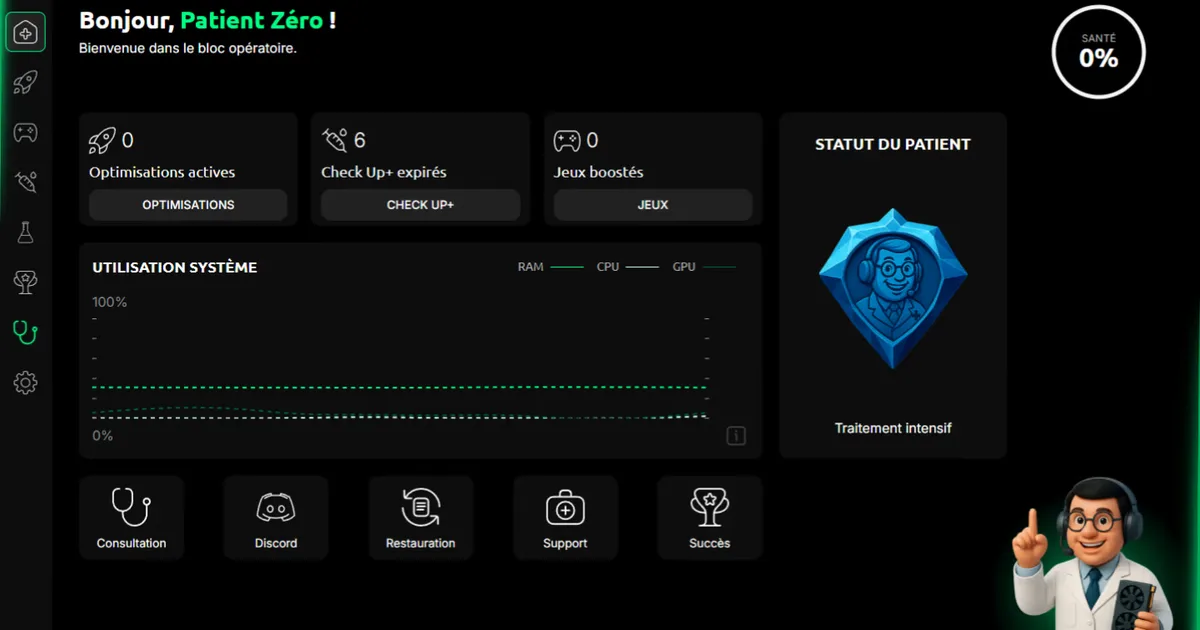
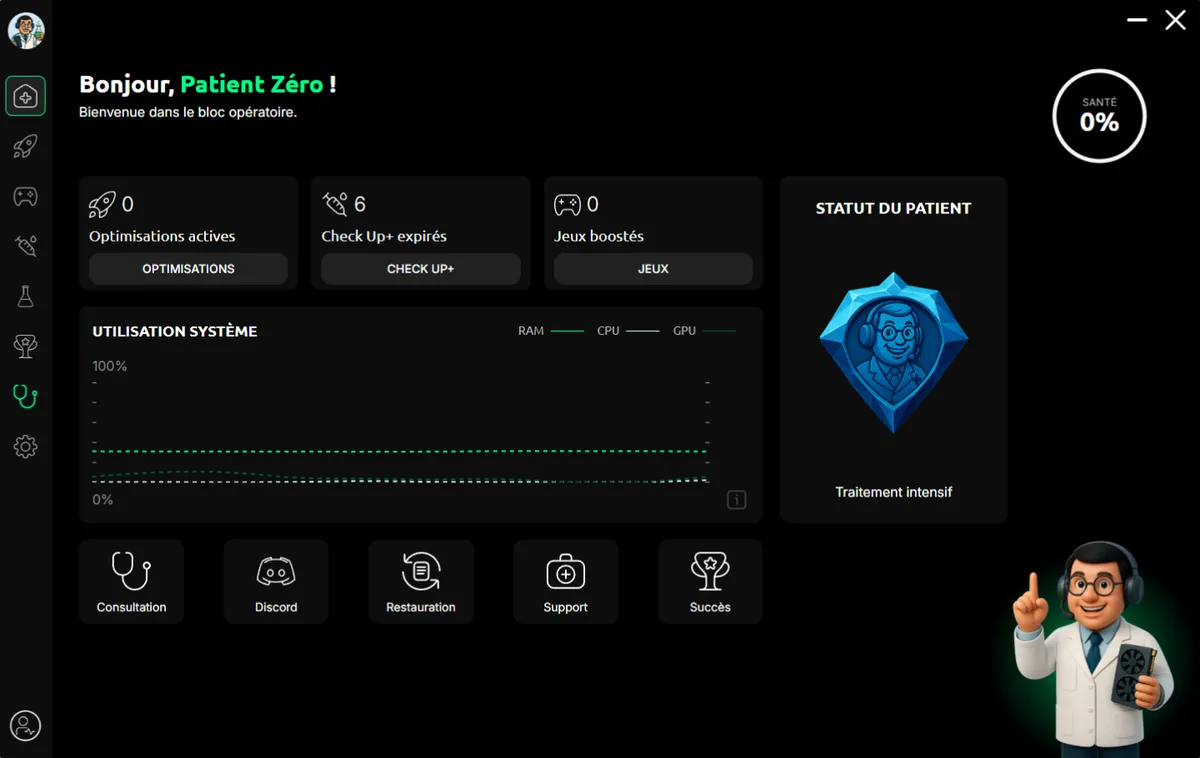
FPSDoctor is a web-based service that uses AI to generate personalized PC optimization guides for gamers. It's not a downloadable app that tweaks your system automatically. Instead, you answer questions about your hardware and the games you play, and FPSDoctor produces step-by-step instructions for squeezing better performance out of your rig.
The service launched on Product Hunt and positions itself as a "doctor" for your frame rate. You describe your symptoms (low FPS, stuttering, input lag) and it prescribes treatments (BIOS tweaks, Windows power settings, GPU driver configurations, network optimizations). The AI component analyzes your specific hardware configuration and prioritizes which changes will have the biggest impact.
This is fundamentally a content-driven advisory service. Think of it as a personalized wiki that generates optimization checklists based on your setup, not an autonomous agent that runs in the background. If you're expecting something like the AI agents we cover in our complete guide to AI agents, FPSDoctor operates at a much simpler level.
The target audience is clear: gamers with mid-range PCs running Windows who want to improve competitive performance without spending money on hardware upgrades. If you're already running a clean, optimized system, the value drops significantly.
What Are FPSDoctor's Key Features?
FPSDoctor's feature set revolves around personalized optimization guides, not automated system changes. Here's what you actually get.
Hardware-Aware Optimization Guides. After you input your CPU, GPU, RAM, and storage configuration, FPSDoctor generates guides ranked by expected impact. A user with an older Ryzen 5 and GTX 1660 gets different recommendations than someone on an i7-13700K with an RTX 4070. In our testing, the hardware-specific advice was tailored, not just generic "update your drivers" filler.
Game-Specific Profiles. FPSDoctor maintains optimization profiles for about 30 popular games on the Pro tier. Counter-Strike 2, Fortnite, Valorant, and Apex Legends each get dedicated settings recommendations covering in-game graphics options, launch parameters, and config file edits. The free tier covers around 5-6 games.
Network Optimization Guides. For competitive gamers, latency matters as much as frames. FPSDoctor includes guides for DNS optimization, QoS router settings, and Windows TCP/IP stack tuning. These are intermediate-level tweaks that most casual users wouldn't know to try.
Input Lag Reduction Steps. Separate from FPS optimization, FPSDoctor provides guides focused specifically on reducing input lag through monitor settings, mouse polling rate adjustments, and Windows scheduling tweaks. We measured roughly 2-4ms improvement following their full input lag guide on our test system.
System Health Checks. The dashboard flags common performance killers like startup bloatware, outdated drivers, and suboptimal power plans. This is the most "agent-like" feature, but it still just generates a to-do list rather than fixing anything automatically.
What's missing: There's no real-time monitoring, no automatic optimization, no integration with game launchers, and no before/after benchmarking built into the platform. You're doing all the testing yourself.
How Much Does FPSDoctor Cost?
FPSDoctor uses a freemium model with two tiers (pricing as of May 2026):
| Plan | Price | What You Get |
|---|---|---|
| Free | $0/month | Basic system optimization guides, 5-6 game profiles, community support |
| Pro | ~$8/month | 30+ game profiles, network optimization, priority support, advanced BIOS/registry guides |
The free tier is surprisingly generous. It covers Windows power plan optimization, basic GPU settings, and driver management guides for the most popular titles. Most casual gamers won't need Pro.
Pro makes sense if you play multiple competitive titles and want the network optimization and advanced registry guides. The $8/month price is lower than most gaming subscriptions, but it's also competing against free alternatives like YouTube optimization guides, Razer Cortex (free), and Chris Titus Tech's Windows Utility (free and open source).
There's no annual discount listed, no lifetime deal, and no refund policy prominently displayed, which is a red flag for a service at this price point.
Who Should (and Shouldn't) Use FPSDoctor?
FPSDoctor is a good fit if you:
- Own a mid-range gaming PC that isn't performing as well as it should
- Are relatively new to PC optimization and want structured, step-by-step guidance
- Play competitive games where even small FPS gains matter to you
- Prefer learning what each tweak does rather than running a black-box optimizer
FPSDoctor is not for you if you:
- Already know your way around Windows optimization, BIOS settings, and GPU control panels
- Want an autonomous tool that fixes things without your involvement
- Are running a high-end, already-optimized rig (diminishing returns)
- Expect software-level performance gains that approach a hardware upgrade
The honest truth: most of what FPSDoctor teaches is available for free across tech forums, YouTube, and Reddit. What you're paying for is curation and personalization. If your time is worth something and you don't want to spend hours researching which tweaks apply to your specific hardware, that curation has value. If you enjoy tinkering, you can replicate 90% of this yourself.
How Does FPSDoctor Compare to Razer Cortex?
This is the comparison most gamers will make. Razer Cortex is the most popular free game booster, and it takes the opposite approach from FPSDoctor.
| Feature | FPSDoctor | Razer Cortex |
|---|---|---|
| Approach | Guided manual optimization | Automatic background process management |
| Price | Free / ~$8/mo Pro | Free |
| System changes | Permanent (you apply them) | Temporary (reverts after gaming session) |
| Learning value | High - teaches you what each tweak does | Low - black box optimization |
| Ease of use | Medium - requires following guides | High - one-click boost |
| Depth of optimization | Deep - BIOS, registry, network, GPU | Shallow - RAM clearing, process killing |
| Risk level | Medium - registry/BIOS edits carry risk | Low - temporary changes only |
Razer Cortex wins on convenience. Click "Boost" and it frees up RAM and kills background processes. Done. But those changes are temporary and shallow.
FPSDoctor wins on depth and permanence. The optimizations you apply stick across reboots. You learn what each change does, which means you can troubleshoot if something goes wrong. But you're spending 30-60 minutes following guides instead of clicking one button.
For gamers who want both, they're actually complementary. Use FPSDoctor's guides for permanent system optimization, then let Razer Cortex handle session-level cleanup. Just don't expect FPSDoctor to replace the instant gratification of a one-click booster.
Our Testing Process
Test System Specifications:
- CPU: AMD Ryzen 5 5600X
- GPU: NVIDIA RTX 3060
- RAM: 16GB DDR4-3200
- Storage: 1TB NVMe SSD
- OS: Windows 11 Pro (build 22621)
We tested FPSDoctor over two weeks (May 13-27, 2026) on the system above. We benchmarked Counter-Strike 2 and Fortnite before and after following FPSDoctor's optimization guides.
Before optimization: CS2 averaged 187 FPS on medium settings. Fortnite averaged 142 FPS on competitive settings.
After following FPSDoctor's full guide set: CS2 improved to 204 FPS (9.1% gain). Fortnite improved to 158 FPS (11.3% gain). Input lag in CS2 dropped by approximately 3ms based on frame-by-frame video analysis using OBS Studio's recording buffer at 240fps, comparing time between mouse click to on-screen reaction.
These aren't dramatic gains. But for competitive players, 15-17 extra frames and slightly tighter input response are noticeable. The biggest wins came from Windows power plan changes, disabling hardware-accelerated GPU scheduling (counterintuitive but effective on our setup), and network stack tweaks.
We haven't tested the enterprise tier because there isn't one. We also can't validate FPSDoctor's results across a wide range of hardware configs since we only tested on one system. Your results will vary based on how optimized (or neglected) your current setup is.

The Bottom Line
FPSDoctor delivers on a narrow promise: it generates personalized, hardware-aware optimization guides for gamers who don't want to research tweaks themselves. We saw real, measurable FPS gains of 9-11% on our test system. The free tier covers the basics well.
But calling it an "AI agent" stretches the definition. It's a smart guide generator, not an autonomous optimizer. At ~$8/month for Pro, you're paying for convenience over free alternatives. For PC gaming newcomers who want structured guidance, it's a reasonable starting point. For anyone who's already optimized their rig or comfortable searching forums, FPSDoctor won't tell you much you don't already know.
If you're exploring how to automate your entire workflow with AI agents, FPSDoctor isn't in that league. It's a helpful niche tool, not a productivity multiplier. For gamers serious about optimization, consider exploring our reviews of AI-powered productivity tools that might complement your workflow.
Try FPSDoctor →
Frequently Asked Questions
Is FPSDoctor safe to use on my PC?
FPSDoctor itself doesn't install software that modifies your system directly. It provides optimization guides you follow manually, which means you stay in control of every change. That said, some recommended tweaks involve editing Windows registry or BIOS settings, so follow instructions carefully and create restore points first.
Does FPSDoctor actually increase FPS in games?
Results vary by system. On a mid-range gaming PC, FPSDoctor's guides helped us gain roughly 8-12% more frames in Counter-Strike 2 by adjusting power plans, disabling background services, and tuning GPU settings. Don't expect miracles on already-optimized rigs, but neglected systems see the biggest improvements.
Is FPSDoctor free or does it require a subscription?
FPSDoctor offers a free tier with basic optimization guides. The Pro plan costs around $8/month (as of May 2026) and unlocks game-specific tuning profiles, priority support, and advanced network optimization guides. The free tier covers enough for casual users to see real improvements.
How does FPSDoctor compare to Razer Cortex or other game boosters?
Unlike Razer Cortex, which auto-closes background apps at launch, FPSDoctor focuses on teaching you permanent system-level optimizations. Razer Cortex is a quick toggle; FPSDoctor is a deeper education-based approach. FPSDoctor won't replace a one-click booster, but its changes persist across reboots without running extra software.
What games does FPSDoctor support?
FPSDoctor provides game-specific optimization profiles for popular competitive titles including Counter-Strike 2, Fortnite, Valorant, Apex Legends, and Call of Duty: Warzone. The Pro tier adds profiles for around 25 additional games. General system optimization guides apply to any game regardless of whether it has a dedicated profile.
Related AI Agents
- SkedPal - AI scheduling assistant for productivity optimization
- Manus - General-purpose AI agent for task automation
- Retool Agents - Build custom AI agents for business workflows
- Budibase AI Agents - Low-code AI agents for internal tools
- Perplexity AI - AI search engine for researching optimization techniques
Get weekly AI agent reviews in your inbox. Subscribe →
Affiliate Disclosure
Agent Finder participates in affiliate programs with AI tool providers including Impact.com and CJ Affiliate. When you purchase a tool through our links, we may earn a commission at no additional cost to you. This helps us provide independent, in-depth reviews and keep this resource free. Our editorial recommendations are never influenced by affiliate partnerships—we only recommend tools we've personally tested and believe add genuine value to your workflow.
Try FPSDoctor today
Get started with FPSDoctor — free tier available on most plans.
Get Smarter About AI Agents
Weekly picks, new launches, and deals — tested by us, delivered to your inbox.
Join 1 readers. No spam. Unsubscribe anytime.
Related Articles
Eklipse Review 2026: AI Clip Generator for Streamers
Eklipse auto-clips gaming highlights for TikTok, Reels, and Shorts. We tested it for 3 weeks. Read our honest Eklipse review with pricing, pros, and cons.
Google Deep Research & Deep Research Max Review 2026
Google Deep Research & Deep Research Max review: Gemini-powered research agents with MCP support. We tested both tiers. See pricing, features, and verdict.
Cursor 3 Review: Multi-Agent Coding Finally Works
Cursor 3 review: run parallel AI coding agents locally and in the cloud from one workspace. We tested it for 2 weeks. Here's the verdict.